Photoshop Actions | FREE Holiday Gift Sampler With Gift Cards and Tags | Whimsy and Good Cheer Set
Posted on November 26, 2011
I’ve been working on an amazing new set of holiday cards, gift tags, papers, stickers, labels, bookmarks and more for a long time now and am very excited to be releasing them this next week! As a gift to everyone I’ve created a FREE sampler set that coordinates with the Whimsy and Good Cheer Holiday Mega Set releasing this week – featuring everything from holiday greeting cards, gift tags, and labels to digital papers, stickers, bookmarks and business cards. This mega collection is full of different options to fit everyone’s needs and are so flexible they can be used year round for all types of occasions. For Photoshop CS2 and up and Photoshop Elements 6 and up.
In the free sampler you’ll find a number of options for small gift cards or tags. They are very customizable with different decorative text headings to choose from and different styles for each card. One of our favorite things to do with presents in our home is use photos on our gift tags in lieu of simply writing the names. It adds a very personal touch, is fun to do and there are many ways to put a twist on it. Last year we used only baby or toddler photos of everyone on their tags … it was fun watching people trying to figure out who was who. The kids especially seem to love the photo tags, and giving gifts with the recipient’s photo on the tag gives it an extra personal touch. I hope you enjoy them as much as we do! And they’ve been designed so they can be used year round for other needs as well.
Included in the download are instructions for use and a print guide with links to a recommended printer … they allow you to have up to fifty different designs in one order (all for a price that will make you say wow!). So, you can easily print a custom label or tag for everyone on your list and never have to choose just one design to have printed. So, be sure to check that out in the download! :)
All I ask in sharing these gifts is that you pretty please spread the word! Thank you so much for your incredible support … the Paint the Moon community‘s kindness, sense of inspiration and positive attitude are such a blessing and I thank each and everyone of you for being a part of it!
Pin It

Photoshop Actions Elements Workflow | I “Mustache” You a Question …
Posted on September 26, 2011

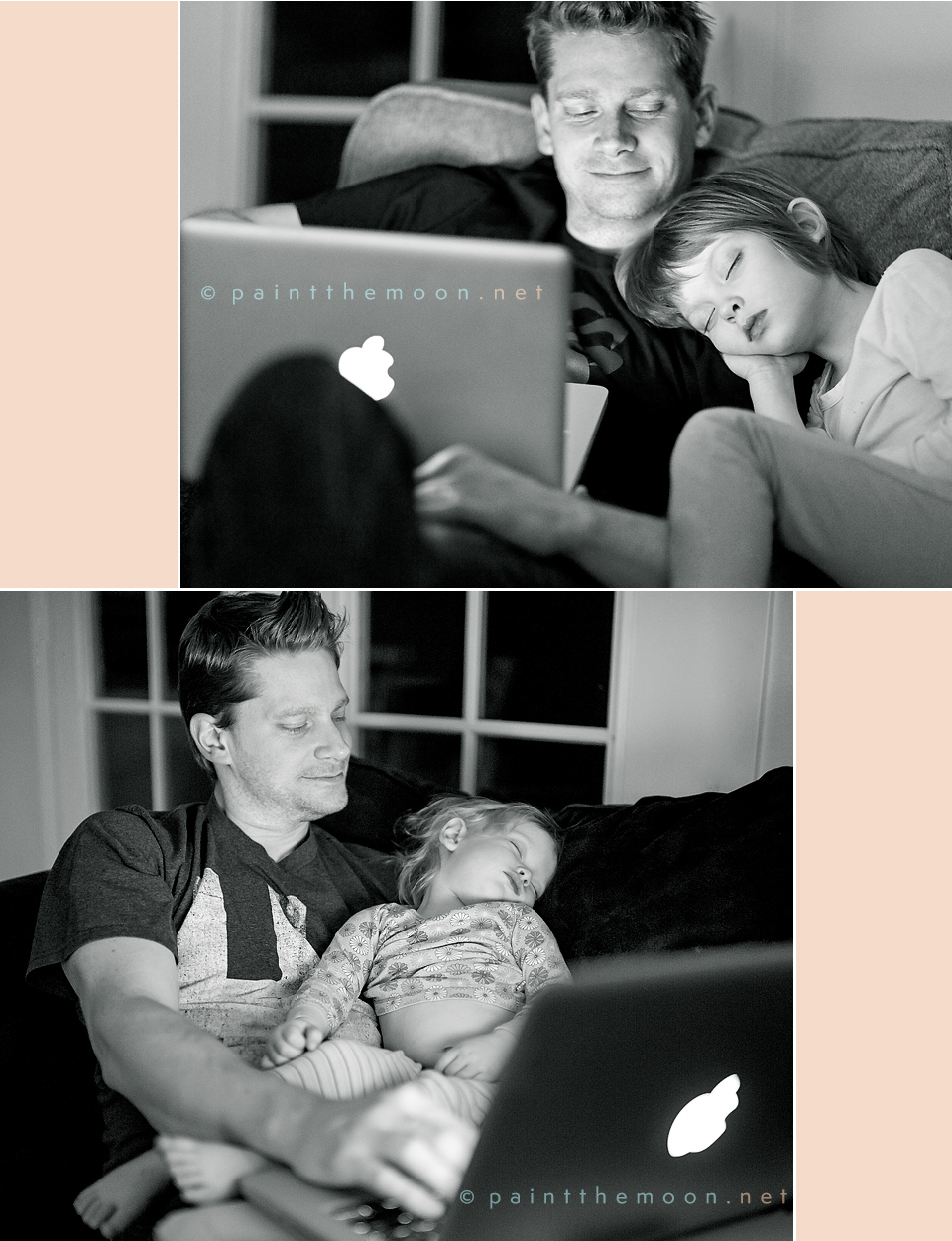
Processed with Picture Perfect Portrait Mega Set – All Together Now { Urban } and a little bit from the upcoming Luminosity.
Taken with a Nikon 85mm 1.4G lens at ISO 320, f1.4, 1/160 sec.


Photoshop Actions | Picture Perfect Portrait Mega Set – Bigger and Better!
Posted on September 8, 2011
I am happy to announce the release of the new and improved Picture Perfect Mega Set for Photoshop and Photoshop Elements. With the addition of a number of brand new actions and exciting updates to many of your favorites, the new Picture Perfect Mega set is bigger and better than ever.
The set now includes over 70 professional, time saving actions including the two “All In One” mega actions – “All Together Now (Workflow Edit)” and the “Perfect Portrait (Retouching Edit).” From retouching (skin, eyes, teeth, etc) and color corrections to workflow foundations (contrast, clarity, color pop, exposure fixes, etc.) and artistic styles – we’ve got you covered! This is the perfect set for the foundation of your processing arsenal. And Photoshop users will delight in being able to batch process to speed through your workflow quick and efficiently!
As a way to say thank you for all of you that currently own and love Picture Perfect, I’ll soon start rolling out FREE upgrades. My plan is to begin rolling out the upgrades over the next two weeks, so keep an eye on your in box to make sure you know when your free upgrade arrives! This is a huge job to tackle, but rewarding my loyal customers is worth the time and effort involved in undertaking such a project … I thank you for your patience! And for those who haven’t snatched up this amazing set yet, now is the time to do it and save! This is seriously an amazing set and fabulous value.
In the mean time, make sure to check out the brand new Picture Perfect Mega set video above which demonstrates the new All Together Now action being used. A specific video showing how to batch process in Photoshop is coming soon as well.


Photoshop Actions Tutorial Recipe | Spring Colors and a Fresh Look, Step by Step | Paint the Moon
Posted on May 27, 2011

Today’s Step by Step uses the sets, Picture Perfectand Fresh (a few of the actions are in Fresh Wonderland … the others are coming to PSE as Fresh Wonderland II within the next week or two). This particular processing session took me about 3 minutes to complete (including a quick cloning job to remove the distracting raffia on the suitcase).
This image was taken right around sunset, and you can just see a hint of the golden color peeking over the trees in the back. I wanted to bring out some fresh, golden colors and enhance the overall spring-y, happy mood of the photo. The perfect set to do this is the Fresh action set. For Elements users looking for Zippy Soft Pop (and the very popular Pop My Flare! and faux sun flare actions), be sure to look out for Fresh Wonderland II, releasing in the next couple weeks. I also use a couple tools from the Picture Perfect Mega Set.
I start with the whimsical Candy Light Pop action from Fresh (can be found in Fresh Wonderland for PSE). This action gives you a fresh and whimsical color and pop. I don’t need to do a thing to it except adjust the opacity down to about 55%.
Also from the Fresh set (and coming to Fresh Wonderland II for PSE), I use the Zippy Soft Pop action to add a little more drama to the image. This makes my highlights almost blown out, so I turn off the Make It Lighter layer and the Brighten & Contrast layer. Then I turn on the Make It Darker layer and raise the opacity to 10%.
Action tip: Note that most of the PTM artistic actions include a Make It Darker and Make It Lighter layer to help adjust your exposure as needed. Most of the time the Make It Lighter layer is turned on at the end of the action, with the Make It Darker layer having an opacity set at 0%. If an action makes your image too bright, simply turn off the Make It Lighter layer (or adjust the opacity down) … and if still too bright, turn up the opacity on the Make It Darker layer until you see the results you like.
Next I run the Let’s Be Clear action from Picture Perfect to bring out edge details. The opacity is turned up to 33%. To brighten up the shadows which have gotten a little muddy with the contrast added I run Instant Reflector at 25% from Picture Perfect. And also from the Picture Perfect set I run Bring Back Highlights to fill back in some details in the chair and her shirt sleeves, turning the opacity to 20%.
Finally, to add just a little soft sweetness I run Sweet Prairie from Picture Perfect. I love this action for bringing a hint of vintage and sunshine to an image. I turn the opacity down to 40% to just leave a little hint of honeyed warmth and strawberry sunset haze. Yummy!
And that’s it … here are the before and after images: